One of the most confusing parts of embroidery is understanding file types. You might have a beautiful logo in a JPG or AI format, but your embroidery machine simply will not read it.
This happens because your machine cannot “see” a picture. It needs a specific set of digital instructions to know where to move the needle, when to trim the thread, and when to change colors.
At Sassy Digitizing, we handle this conversion process for you. We take your artwork and turn it into a stitch file that your specific machine understands. However, different machines speak different languages.
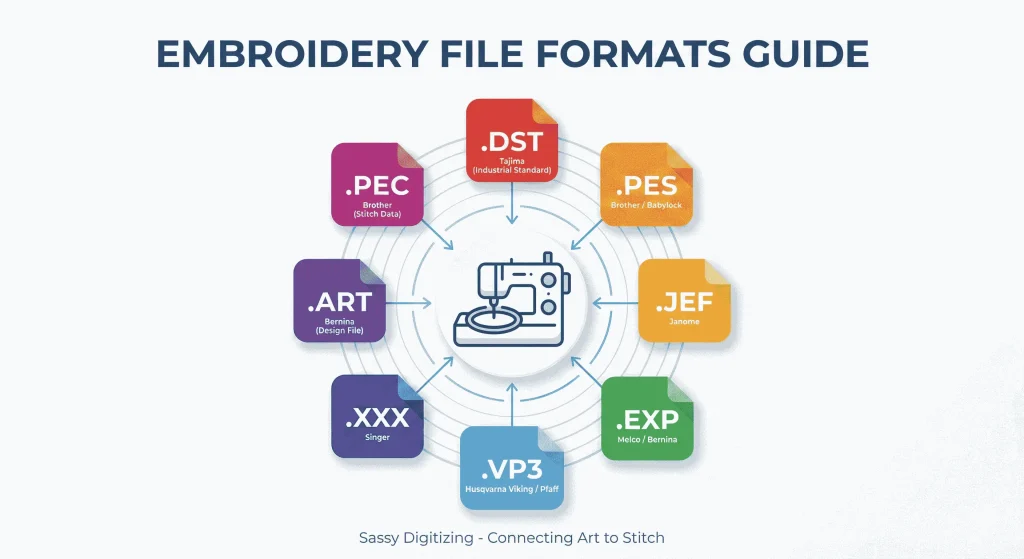
Here is a breakdown of the most common embroidery file formats we use to ensure your project runs smoothly.
1. .DST (The Industrial Standard)
If there is one file format that rules the embroidery world, it is the DST file. It was created by Tajima but is now considered the universal standard. almost every commercial and home machine can read a DST file.
Best for: Commercial embroidery and anyone sending files to a professional shop.
The Catch: DST files do not save color information. When you load a DST file onto your machine, the screen might show strange colors. You will need to manually assign your thread colors at the machine based on your production worksheet.
2. .PES (Brother and Babylock)
The PES format is incredibly popular because Brother and Babylock dominate the home embroidery market. Unlike the industrial DST format, PES files are very smart. They save your exact color palette and even the hoop size information.
Best for: Home hobbyists and small business owners using Brother machines.
The Catch: There are many versions of PES files. An older machine might not be able to read a file saved in a newer version, so compatibility is key.
3. .JEF (Janome)
JEF is the native language for Janome embroidery machines. It is a stitch-based format that is reliable and easy to use.
Best for: All Janome embroidery machines.
The Catch: Janome machines are strict about hoop sizes. If the design in the JEF file is even slightly larger than the hoop allows, the machine often refuses to open the file at all.
4. .EXP (Melco and Bernina)
The EXP format is interesting because it serves two different markets. It is used by Melco commercial machines and Bernina high-end home machines.
Best for: Commercial shops using Melco and home users with Bernina systems.
The Catch: Like the DST format, basic EXP files sometimes rely on a secondary file to pull in the correct colors. Without that extra data, you may have to set colors manually.
5. .VP3 (Husqvarna Viking and Pfaff)
This is the modern standard for the SVP Worldwide group, which includes Singer, Viking, and Pfaff. It replaced the older VIP and HUS formats.
Best for: Modern European machines.
The Benefit: It handles color information and stitch data very efficiently. It usually gives a very accurate preview on your machine screen.
6. .XXX (Singer)
While many modern Singer machines can now read other formats, XXX is the traditional format for Singer embroidery machines.
Best for: Older Singer models and users who want to stick to the native format.
Which Format Should You Choose?
If you are just starting out, the alphabet soup of file extensions can be overwhelming. Here is the simple rule we follow at Sassy Digitizing:
For Home Machines: Check your manual. If you have a Brother, ask for PES. If you have a Janome, ask for JEF.
For Commercial Machines: You can rarely go wrong with DST. It is the safest bet for professional production.
When in Doubt: Tell us the make and model of your machine. We will know exactly which file you need.
Frequently Asked Questions (FAQs)
Q: Why are the colors wrong on my machine screen? A: You are likely using a DST file. This format does not store color data, so your machine just picks default colors. You simply need to thread your machine with the right colors and ignore the screen.
Q: Can I change the size of these files? A: You should not resize a stitch file more than 10%. If you make it too big, the stitches will be too spread out. If you make it too small, the stitches will clump together and break needles. It is always better to have us resize the original file for you.
Q: My machine says the file is corrupt. What do I do? A: This usually means the design is too big for your selected hoop. Try switching to a larger hoop on your machine or ask us to resize the design to fit your specific hoop limits.
About the Author
Keith Blair | Senior Quality Control (HOD)
Keith Blair serves as the Head of Department for Quality Control at Sassy Digitizing. He brings 12 years of commercial embroidery experience to the team. His role focuses on the technical mechanics of digitizing, such as adjusting stitch densities and lengths to suit different fabric types. A specialist in advanced production methods, Keith oversees the digitizing standards for complex 3D puff, appliqué, and small lettering projects. He ensures that every file is tested for efficiency and run-ability before it reaches the customer. Keith bridges the gap between digital design and physical production.